
Welcome to a short guide on how to use our Zoom Events platform for all Hybrid/Virtual Events. For any problems/queries, please contact [email protected].
Download Zoom Desktop App
We highly advise downloading the Zoom Desktop App as this allows for seamless joining of sessions as well as maximum interaction within sessions, giving you access to Q&A, Polls, Survey and Resource/Document links.
Step 1
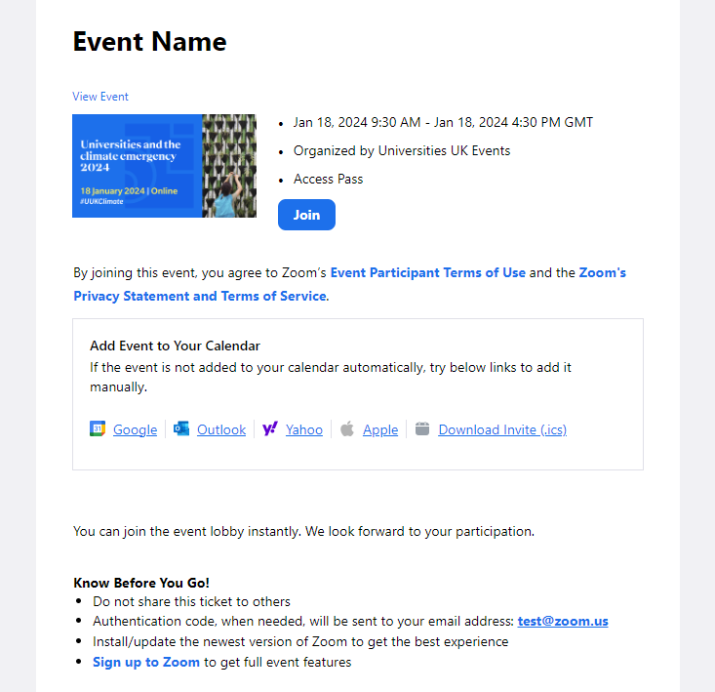
Your first interaction with our platform will be from an email sent to the email address used to register for the conference, from Zoom/Universities UK Events. This will usually be sent between 3-5 days before the conference and will contain your personal joining link to access the Event Lobby. Please keep hold of this email/link it will give you access to all recorded content as well as speaker presentations and other resources after the conference for up to 1 year. An example of this email is shown below:
Step 2
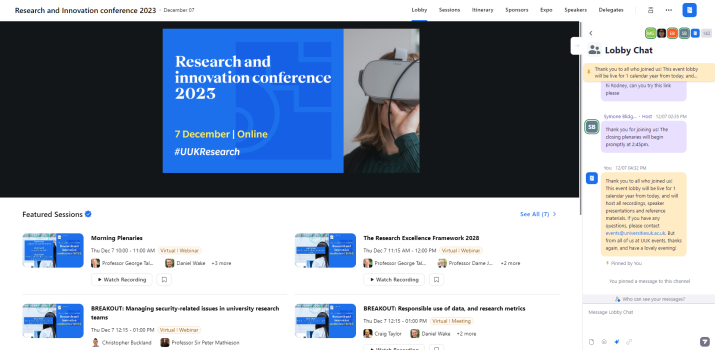
Once you have clicked "Join" in the email, and gained access to the Event Lobby, you should be presented with a view which looks like the below image. Please keep in mind, this image is from a previous event.
Step 3
The main way to navigate through the event is using the top bar, please see below for descriptions of each tab:
- Lobby - Will return you to the main page you are seeing now.
- Sessions - Lists all sessions running for the duration of the event with the ability to click into each session to see speakers, resources and presentations.
- Itinerary - If you have pressed the small bookmark button next to any sessions, these will be displayed in your own personalised itinerary here.
- Sponsors - View all our event sponsors and see their bio, resources, downloadable files and have the ability to chat with any of them.
- Expo (only enabled for some events) - This will take you to our virtual expo where you can move between different virtual booths containing more resources, downloadable files and also live chat rooms to have your questions answered.
- Speakers - Directory for all listed speakers taking part in the event along their bios, contact information and social links.
- Delegates - Directory for all delegates who have consented to be "public". Here you can select anyone and start a chat/call with them.
From the Lobby, you will also have access to the Lobby Chat where we will post announcements, changes or any other notices throughout the day.
For information on how to join sessions, please see the relevant guides below
Joining sessions as an Attendee
Once you have found the session you would like to join either in the Lobby or the Sessions tab, please click the blue button next to the session called "Join". Depending on your Operating System, Browser or whether you have the Zoom Desktop App installed, a number of things might happen:
- Zoom Desktop App will open and automatically join the session - This is the best option as you will have no restrictions on interaction. You will be able to see and hear all of the speakers and presentations as well as take part in any Q&A's or Polls/Surveys.
- You will join the session in your browser - This will give you limited interaction but will still allow you to see and hear all of the speakers and presentations.
- Zoom Desktop App will let you know it needs to update to join the session - Please click Yes/OK, and update Zoom. This should only take a few seconds and then automatically put you in the session once it's updated.
- If nothing happens, please wait for at least 30 seconds, then try and join the session again as Zoom is quite slow to start sometimes. If you are attending as part of a longer conference, please ensure that you are not still in a previous session.
Please note that if you are having trouble seeing or hearing the speakers in the session, ensure you have a) joined audio by pressing the "Join Audio" button on the bottom bar and/or b) clicked the "Enable Stream" button again on the bottom bar.
If you are still having trouble, please contact [email protected] and let us know which session you are trying to join.
To take part in the Q&A, please click the "Q&A" button in the bottom bar which will open a small window with a text box for you to ask your question. This will automatically be sent to the Chair/Speakers who will strive to answer all questions at the end of the session.
Once you have finished in the session, please click the red LEAVE button in the bottom right. This should exit the session and take you back to the event lobby ready to explore more content or join the next session.
Joining sessions as a Speaker
Once you have gained access to the Event Lobby and found the session you will be taking part in, depending on whether it's a Plenary or Breakout session, please either click the "Start/Join Backstage" button or "Start/Join" button. Note: Please don't join/start a session except on the day of the conference as this will automatically start the recording.
Depending on your Operating System, Browser or whether you have the Zoom Desktop App installed, a number of things might happen:
- Zoom Desktop App will open and automatically join the session - This is the best option as you will have no restrictions on interaction. You will be able to see and hear all of the other speakers and presentations as well as take part yourself. You will also be able to view any Q&A's or Polls/Surveys.
- You will join the session in your browser - This will give you limited interaction but will still allow you to see and hear all of the other speakers and presentations as well as take part yourself.
- Zoom Desktop App will let you know it needs to update to join the session - Please click Yes/OK, and update Zoom. This should only take a few seconds and then automatically put you in the session once it's updated.
- If nothing happens, please wait for at least 30 seconds, then try and join the session again as Zoom is quite slow to start sometimes. If you are attending as part of a longer conference, please ensure that you are not still in a previous session.
Once you have joined the session, you should see familiar controls to Mute/Unmute your microphone, turn your camera On/Off, as well as a few other controls unique to Zoom Event. The main one you will need to use is a button called either "Backstage" or "Webinar". This will move you between the two main areas of the session. When you are Backstage, no attendees can see/hear you and you can only be seen/heard by other people who are backstage. For most of our events, a member of Event Staff will always be backstage to greet you and give you instructions on what to do next. During the session when you aren't speaking, please keep your camera off and your microphone muted.
Please note that if you are having trouble seeing or hearing the speakers in the session, ensure you have a) joined audio by pressing the "Join Audio" button on the bottom bar and/or b) clicked the "Enable Stream" button again on the bottom bar
To view the Q&A, please click the Q&A tab. This will open a small window and show you all of the questions that have been asked by Attendees.
When your session has finished, please click the "Backstage" button while we display a holding slide to the attendees. Again, a member of Event Staff will be backstage to talk to you. Once finished Backstage, please click the red LEAVE button in the bottom right.

